Guide · SketchUp
D5 Render with SketchUp: Getting Models Render-Ready
3DSAW · Updated
D5 Render reads SketchUp files directly and can stay linked to your SketchUp model while you work, so furniture and lighting you place in SketchUp show up in D5 almost immediately. Knowing what the link syncs — and what it resets — saves a lot of rework.
This guide covers the two ways to get a model into D5, what LiveSync keeps in step, and a short check of downloaded models before you render.
How do I get a SketchUp model into D5 Render?
Either open the .skp file in D5, which reads SketchUp files directly, or install the D5 LiveSync plugin in SketchUp and click Connect to D5 Render to keep both programs linked while you model.
| Plugin | Works with | How it syncs |
|---|---|---|
| D5 LiveSync for SketchUp | D5 Render 2.10 and above · SketchUp 2020.1 – 2026 | Real time: model and material changes appear in D5 as you edit |
| D5 Converter – SketchUp (older) | SketchUp 2017 – 2023 | On demand: press Sync to send changes |
Sources: D5 LiveSync for SketchUp and D5 Sync for SketchUp in the D5 Help Center. Use LiveSync on any recent SketchUp; the older converter is only for SketchUp 2017 – 2023.
What does D5 LiveSync keep in step with SketchUp?
Models and materials sync in real time, and the plugin can also sync the camera view, send SketchUp scenes to D5's scene list and add D5 lights from inside SketchUp.
- Connect to D5 Render launches D5 and syncs the current SketchUp project.
- Live sync / Stop pauses or resumes real-time syncing; Sync Once sends a single incremental update instead.
- Sync Viewpoint matches D5's camera to SketchUp's view.
- Send Scenes copies SketchUp scenes into D5's scene list.
- Light toolbar adds D5 point, spot, strip and rect lights while you are still in SketchUp.
- Export saves grouped models from the .skp file as .d5a models for reuse in D5.
What happens to materials I change in D5?
Material edits you make in D5 are kept when you sync again. To go back to the SketchUp material, create a new material in SketchUp with a new name and apply it — D5 then picks up that material instead.
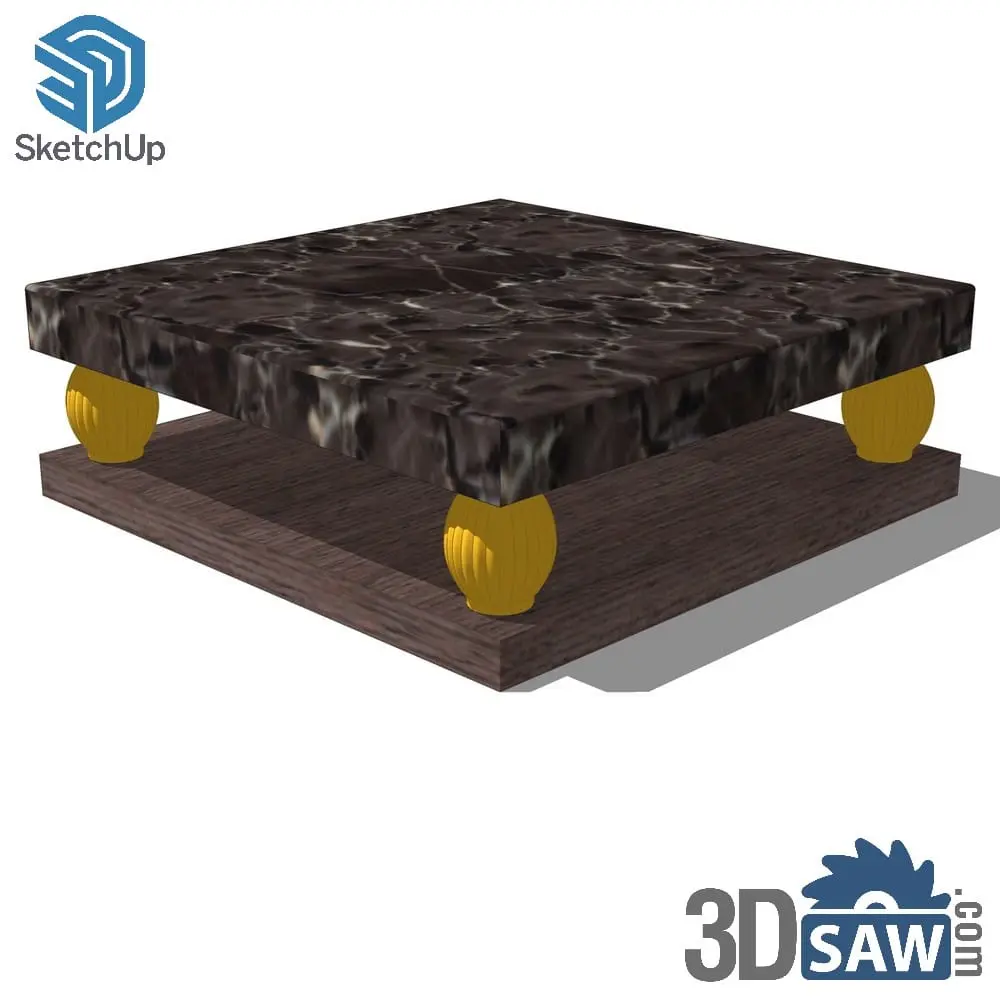
That makes D5 the place to finish materials: reflections, roughness and bump on a downloaded sofa or a marble table stay as you set them, even while you keep moving furniture around in SketchUp.
LiveSync's settings also let you choose a Texture Folder, the place where every texture used by the SketchUp file is stored. Point it at your project folder so textures from downloaded models stay with the project.
Why did my D5 lights move back after syncing?
Position, rotation and size of synced lights always follow SketchUp. If you move or resize a synced light in D5, the next sync resets it, so make those changes in SketchUp.
- Names and grouping you change in D5 are kept; only placement and size are reset.
- A synced light you delete in D5 is not sent again by later syncs — unless you restart the D5 file.
- For many repeated lights, turn on the setting that syncs the structure of light components, so lights with the same properties are grouped automatically in D5.
- To give a light a real fixture's distribution, load an IES profile on it — see How to Light a SketchUp Interior with IES Profiles.
What should I check on a downloaded model before rendering?
Check that it arrives as a component at the right scale, that its textures load, and that you only brought in the pieces the scene needs — every extra object is more work for the renderer.
- Import the .skp into your SketchUp model so it arrives as a component (SketchUp components explained).
- Check its size against something you know, such as a door or a dining table.
- Look at it in D5 once: textures that show as plain color usually mean a missing image file.
- Refine materials in D5, where the changes survive later syncs.
- Delete hidden or unused objects before the final render.
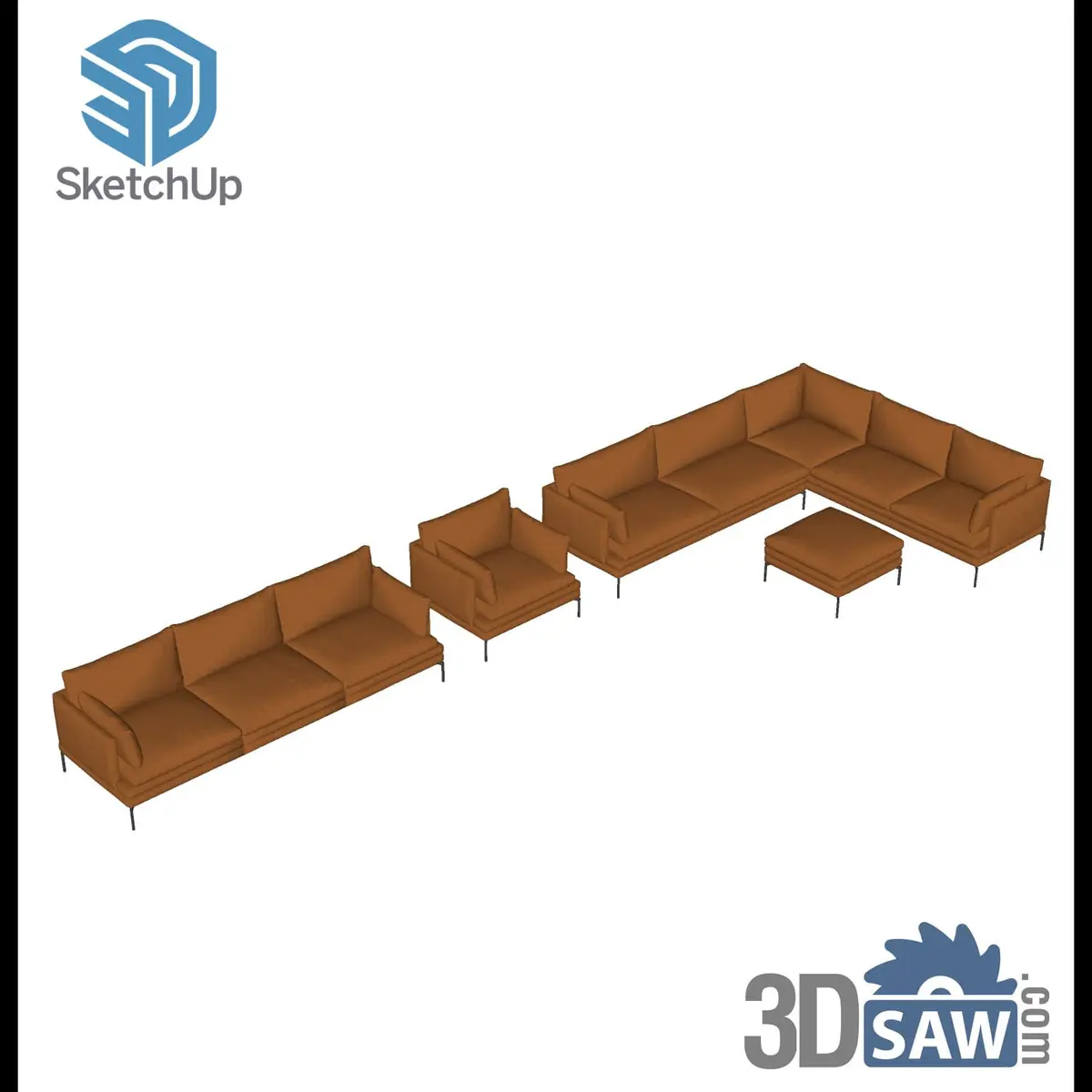
SketchUp Tan Leather Corner Sofa Set with Ottoman
SKP-1466Furniture
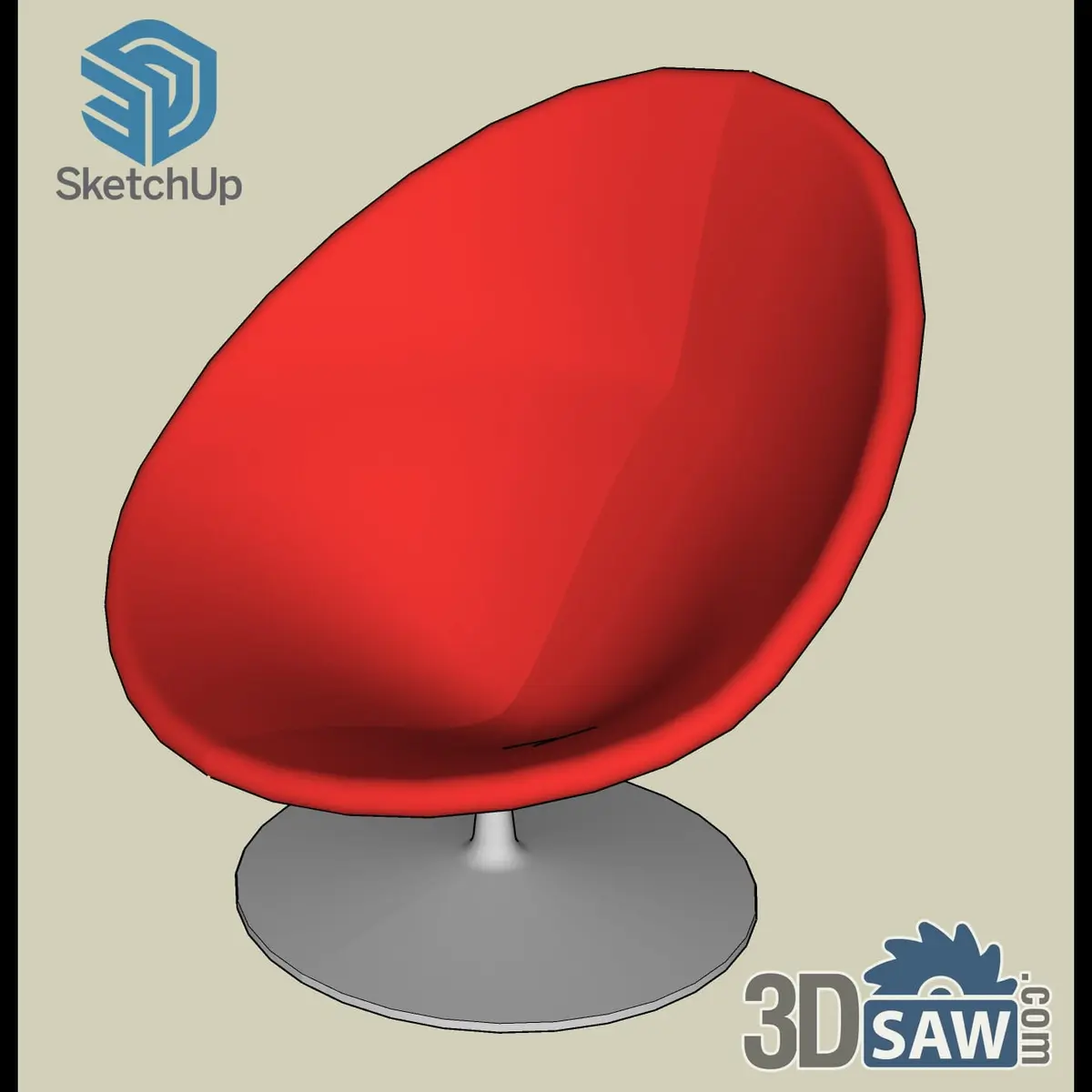
SketchUp Mid-Century Red Egg-Shell Swivel Lounge Chair
SKP-641Furniture
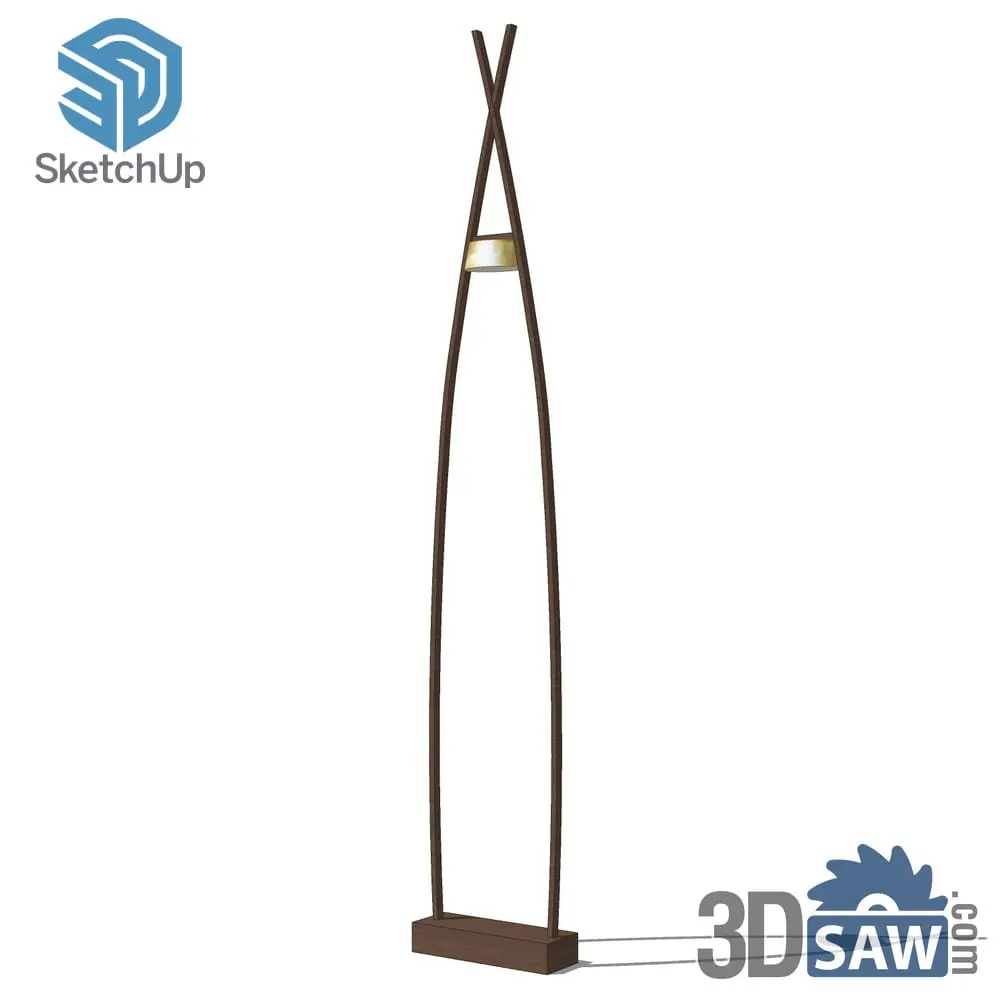
SketchUp Modern Bowed Walnut Arch Floor Lamp
SKP-1233Lighting

SketchUp Three Monstera Plants in Concrete Pots
SKP-1505Plants
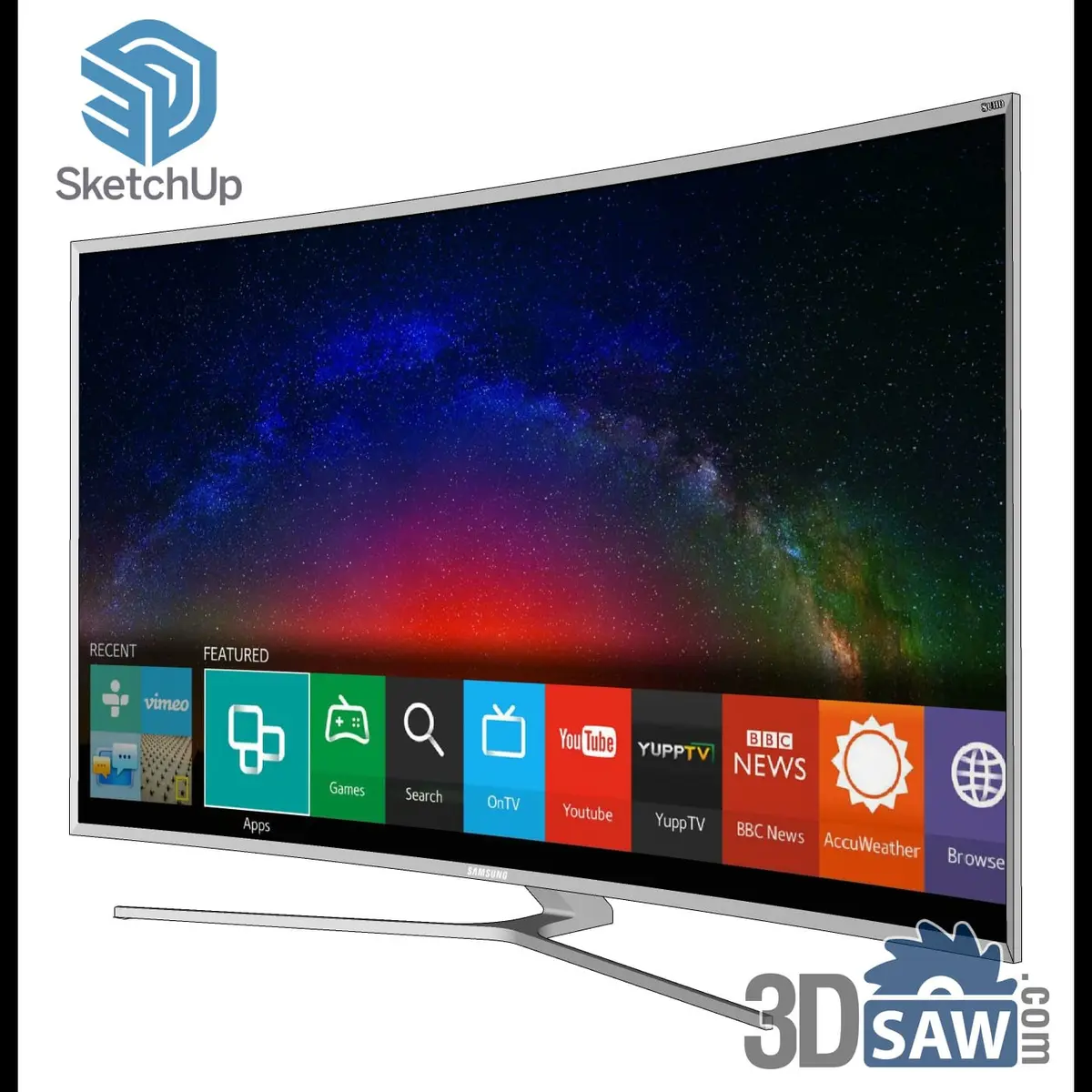
SketchUp Curved Smart TV with App Bar and Nebula Wallpaper
SKP-1521Electronics
SketchUp living room models →Sofas, armchairs, coffee tables, lamps and styling props in native .skp format.