Guide · SketchUp
SketchUp Components Explained for Downloaded Models
3DSAW · Updated
Every chair, lamp or sofa you bring into a SketchUp scene should end up as a component. Components keep a furnished model light to work with, let you change every copy at once, and make it easy to swap a placeholder for the final piece.
This guide covers what components are, how a downloaded .skp model becomes one, and how to keep the models you download in a library you can reuse on every project.
What is a component in SketchUp?
A component is a reusable object with one definition and any number of instances. Change the definition and every instance in the model changes with it; move, rotate, scale or flip one instance and the others stay as they are.
SketchUp Help uses a door as the example: change the glass in one door component and the glass changes in every copy of that door (Components). The same holds for a dining chair repeated around a table, or a row of pendant lights over a counter.
Should I use a component or a group?
Use a component for anything that appears more than once or that you might reuse; use a group only to keep one-off geometry together. A group is a plain selection bundled up, while a component is a shared, reusable object.
| Group | Component | |
|---|---|---|
| What it is | Geometry bundled together | A definition shared by every instance |
| Copies | Each copy is independent | Edit one, all instances update |
| Best for | One-off parts of the model | Furniture, lights, doors, anything repeated |
| Swap for another model | No | Yes — replace all instances at once |
SketchUp's own first rule for components is: if you are going to use something more than once, make it a component before you copy it.
How do I bring a downloaded .skp model in as a component?
Use File > Import and choose the .skp file. SketchUp loads it into your model as a component, with the Move tool active so you can click to place it.
- Download the model and keep the .skp file somewhere you'll find it again.
- In your project, choose File > Import, select the .skp file and click Open.
- Click in the drawing area to place it. It arrives as a component, so copies you make from it are instances.
- Copy it with the Move tool (Ctrl on Windows, Option on Mac) to set out chairs, stools or lights.
Steps from SketchUp Help: Inserting Components. Because every 3DSAW model downloads as its own .skp file, each one imports as a single component — no unpacking a bundle to find the piece you need.
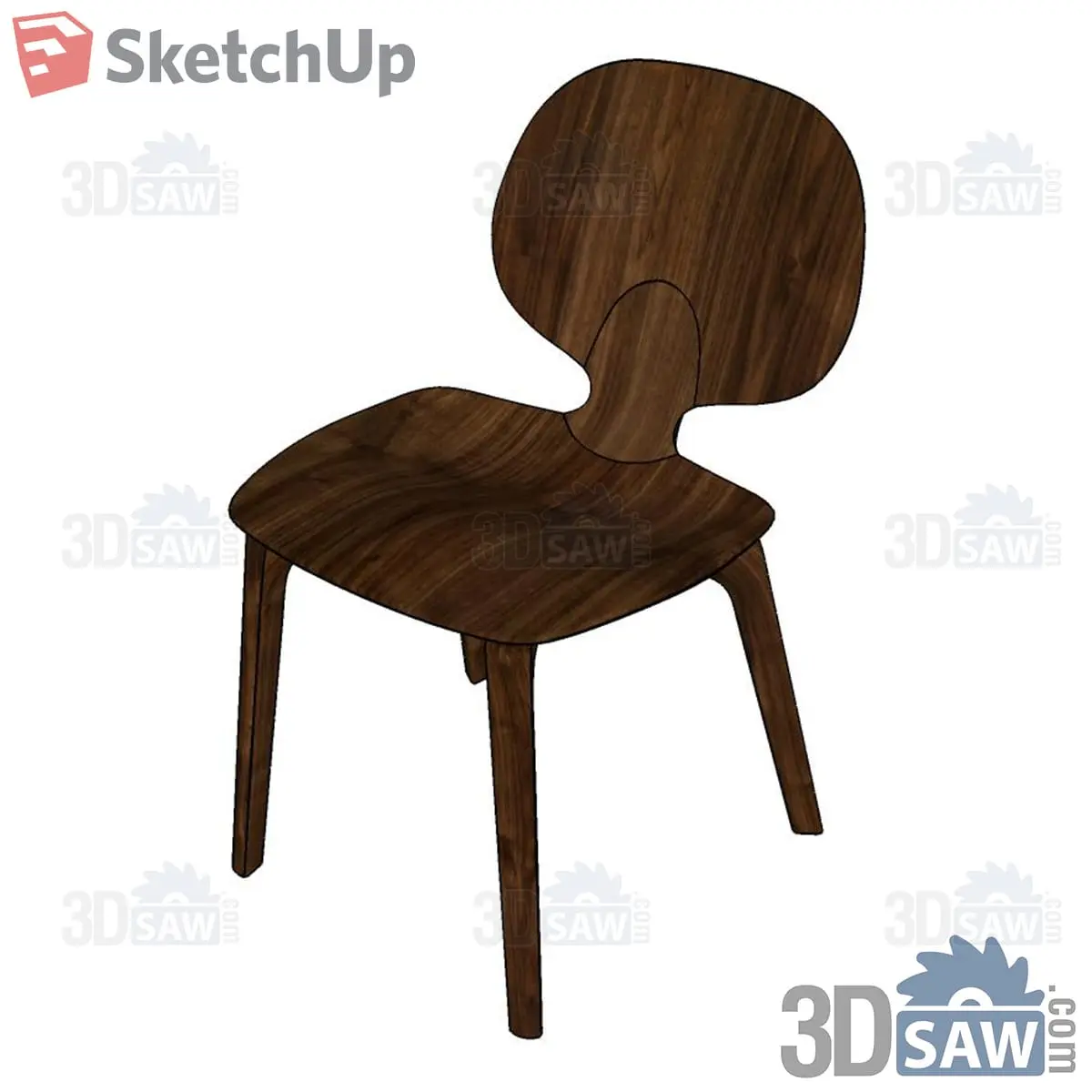
SketchUp Walnut Molded Plywood Dining Chair with Round Back
SKP-213Furniture
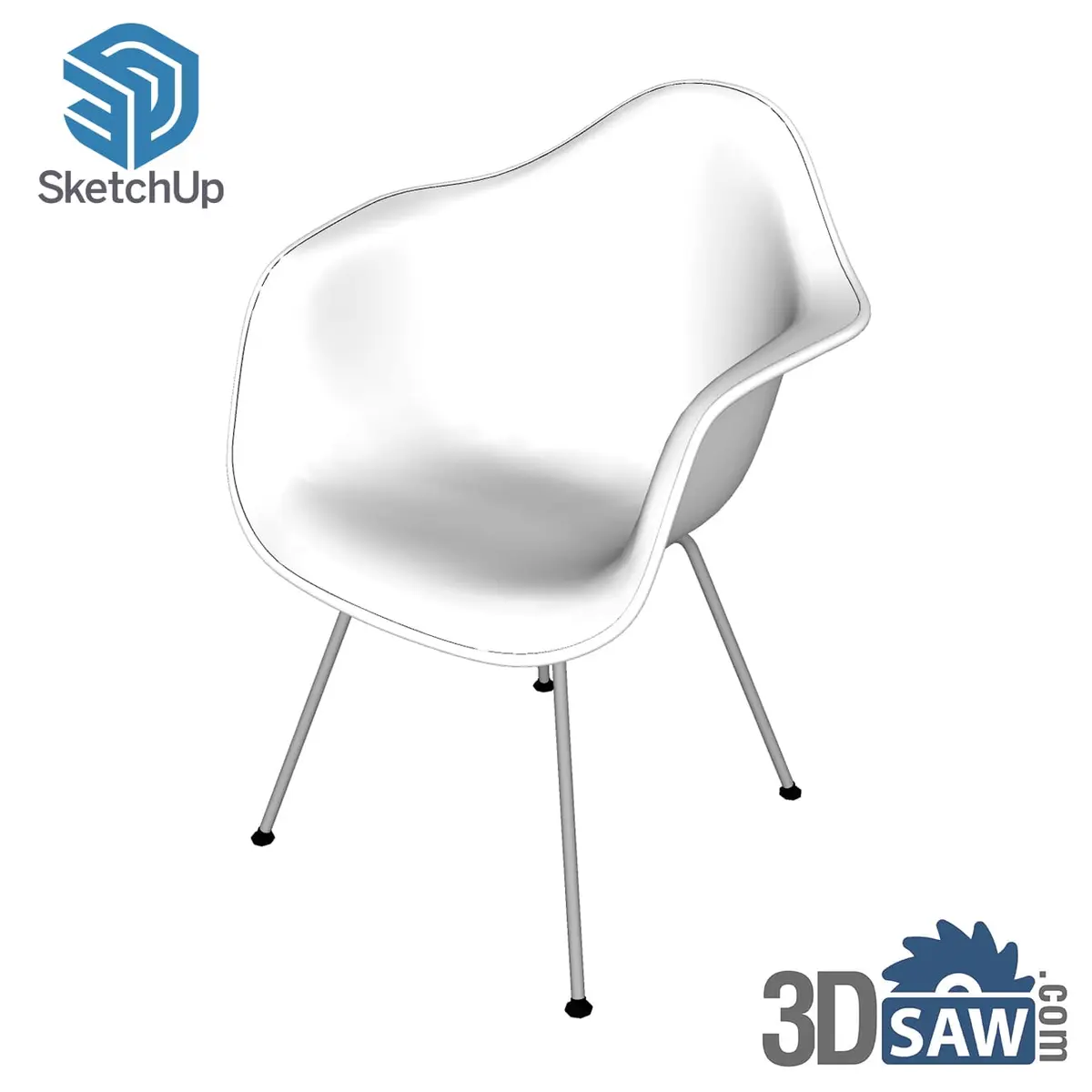
SketchUp Modern White Molded Shell Armchair with Chrome Legs
SKP-428Furniture
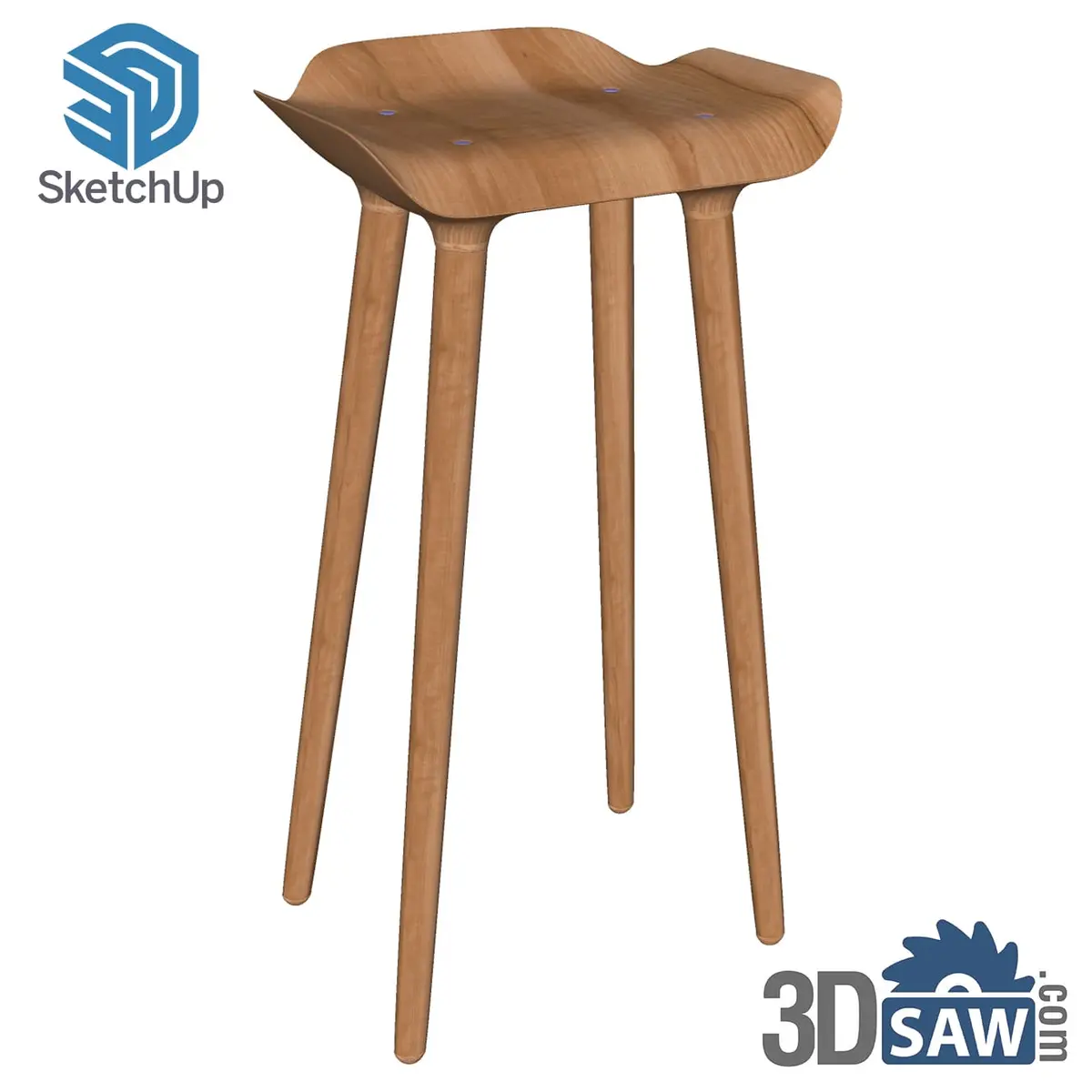
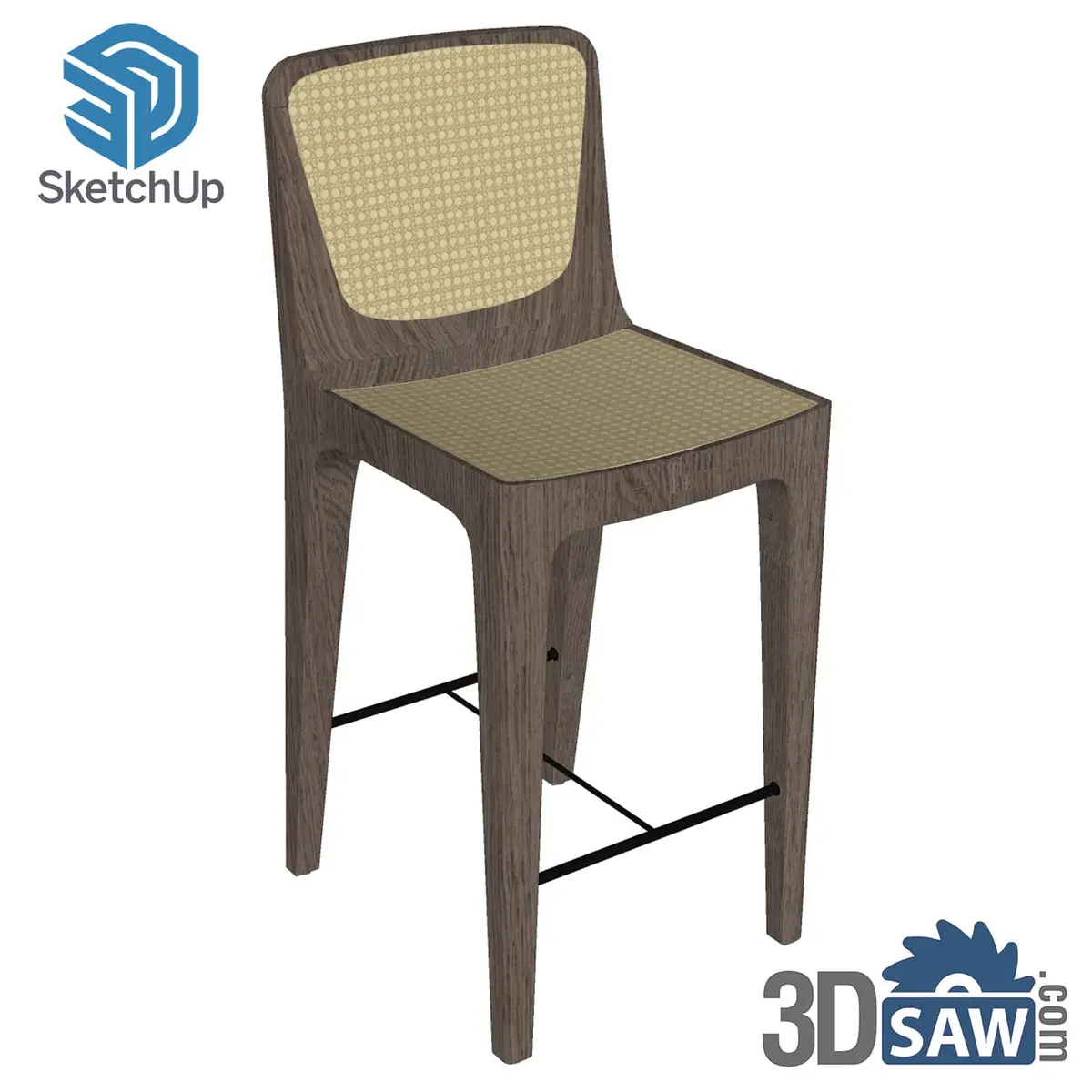
SketchUp Rustic Dark Oak Bar Stool with Woven Cane Seat and Back
SKP-478Furniture
How do I change one copy without changing the others?
Right-click that instance and choose Make Unique. SketchUp turns it into a new component with its own definition, so edits to it no longer affect the original copies.
Use it when one chair in a set needs a different fabric, or one pendant needs a longer cord. See Changing a Single Component Instance in SketchUp Help.
How do I swap a placeholder for the final model?
Place components early, even simple ones, then replace them: SketchUp can swap every instance of one component for another component in one step.
This is the quickest way to try options with a client — set out a dining room with one chair, then swap all of them for a different chair to compare. See Replacing Components.
How do I keep a library of downloaded models?
Save the .skp files into folders on your drive, then open each folder as a local collection in the Components panel. Your downloaded models then sit in the panel, ready to drag into any project.
- Create folders that match how you search — for example Chairs, Sofas, Pendant Lights, Plants.
- Save each downloaded .skp file into the matching folder.
- In the Components panel, click Details and choose Open or Create a Local Collection, then select the folder.
- Add the collections you use most to Favorites from the same Details menu.
Steps from SketchUp Help: Organizing Component Collections. The folder structure can follow the 3DSAW catalog — the same categories and object types you browse on the site.
SketchUp chairs →Dining, upholstered, shell and office chairs in native .skp format.