Guide · SketchUp
How to Light a SketchUp Interior with IES Profiles
3DSAW · Updated
A pendant or a wall sconce only looks right in a render when the light coming out of it behaves like the real product: a tight pool under a downlight, a soft wash from a fabric shade, scallops on a wall. IES profiles give you that behavior, and the fixture model gives you the look.
This guide explains what an IES profile is, how the three most common SketchUp renderers load one, and how to place the light inside a fixture model.
What is an IES profile?
An IES profile is a small text file, published by lighting manufacturers, that records how a specific light fixture spreads light in every direction. A renderer reads it to reproduce that fixture's real distribution and falloff.
The format comes from the Illuminating Engineering Society, hence the .ies extension. Because the data is measured from a real product, two fixtures with the same wattage can still light a wall very differently — which is exactly the difference the profile captures.
Manufacturers publish IES files on their product pages. When you pick a fixture for a project, look there first for the matching profile.
Does SketchUp render IES lights by itself?
No. SketchUp shows geometry, materials and sun shadows, but artificial lights, IES profiles included, are created and rendered by a renderer extension such as V-Ray, Enscape or D5 Render.
That splits the job in two: the 3D model of the lamp provides the shape and materials, and the renderer's light object — placed inside or just below it — provides the light.
How do V-Ray, Enscape and D5 Render handle IES profiles?
All three load .ies files, but on different light types: V-Ray for SketchUp has a dedicated IES Light, Enscape loads profiles onto spot lights, and D5 Render offers an IES setting on spotlights and, since version 2.11, on point, strip, rect and disc lights.
| Renderer | Light that takes an IES file | Intensity from the file |
|---|---|---|
| V-Ray for SketchUp | IES Light | Yes, since V-Ray 6 update 2 (reset restores the file value) |
| Enscape | Spot light (Load IES profile) | Beam angle is removed — the file defines the spread |
| D5 Render | Spotlight; point, strip, rect and disc since 2.11 | Optional: Apply IES Intensity |
- V-Ray for SketchUp: create an IES Light and point it to the .ies file. Chaos describes it as simulating the distribution pattern of a real source by loading the IES file (V-Ray lights). Since V-Ray 6 update 2 the intensity is read from the file when the light is created or the profile changes.
- Enscape: add a spot light, then use Load IES profile in the Enscape Objects window. The beam angle option disappears because the file now defines the spread (Chaos lighting best practices).
- D5 Render: in a spotlight's panel, choose one of the six built-in IES profiles or add your own file, and turn on Apply IES Intensity to use the file's brightness (D5 light panel).
Where should the light go inside a fixture model?
Put the light where the bulb would be: just below or inside the shade, aimed the way the real fixture shines, and never touching the model's surfaces.
- Pendants and downlights: place the light just under the shade opening, pointing down.
- Wall sconces: aim along the wall or up and down to match the shade, so the profile's pattern lands on the wall surface.
- Floor and table lamps with fabric shades: an IES spot inside the shade gives a pool on the floor; a soft point light adds the glow through the fabric.
- Keep a small gap between the light and any surface — Chaos's Enscape guidance is to place lights just before a surface, not on it.
- Group the fixture model and its light, so they move and copy together.
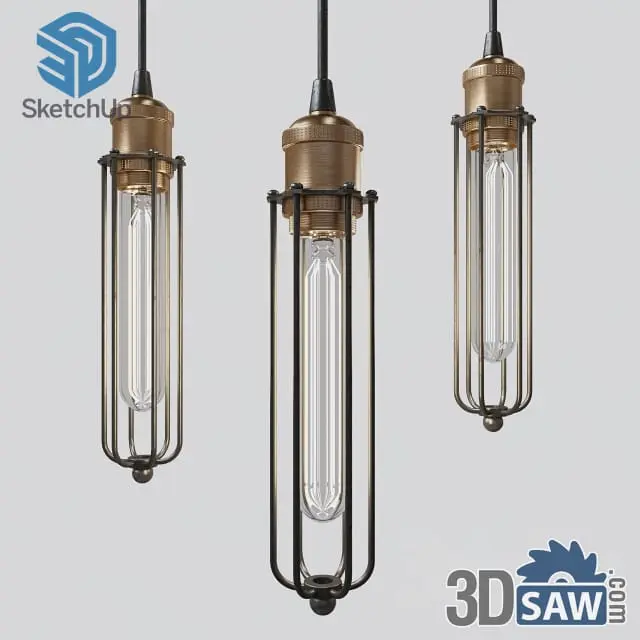
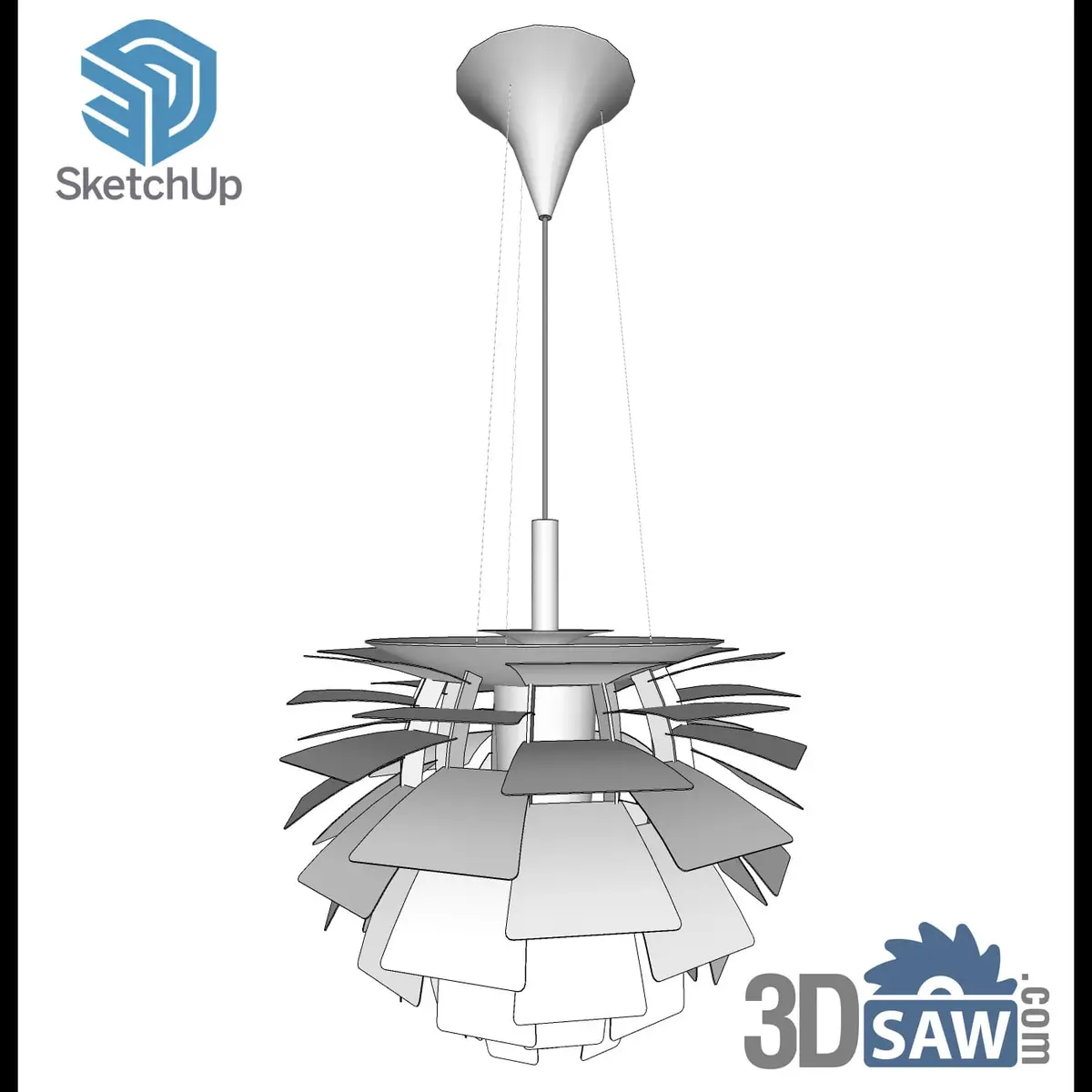
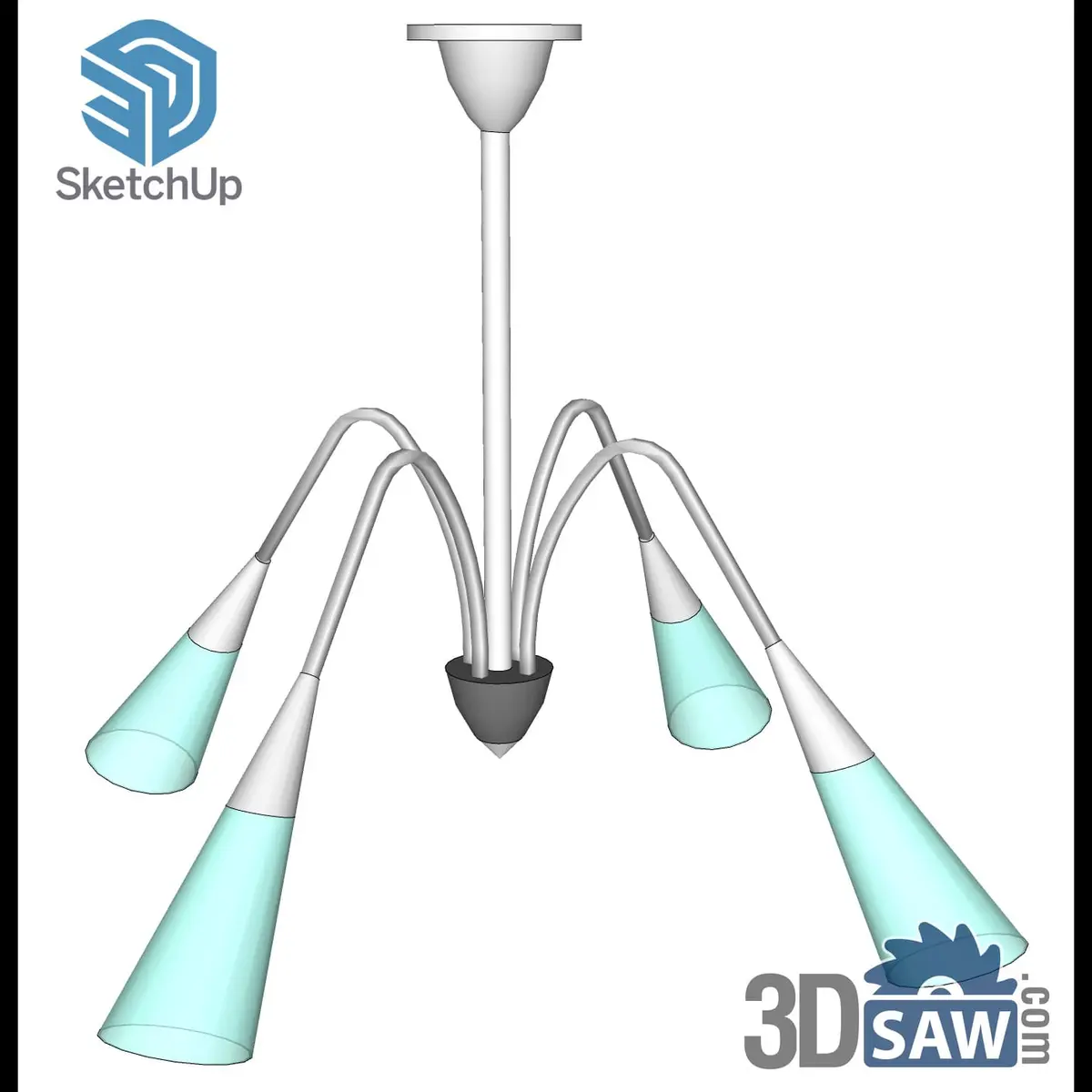
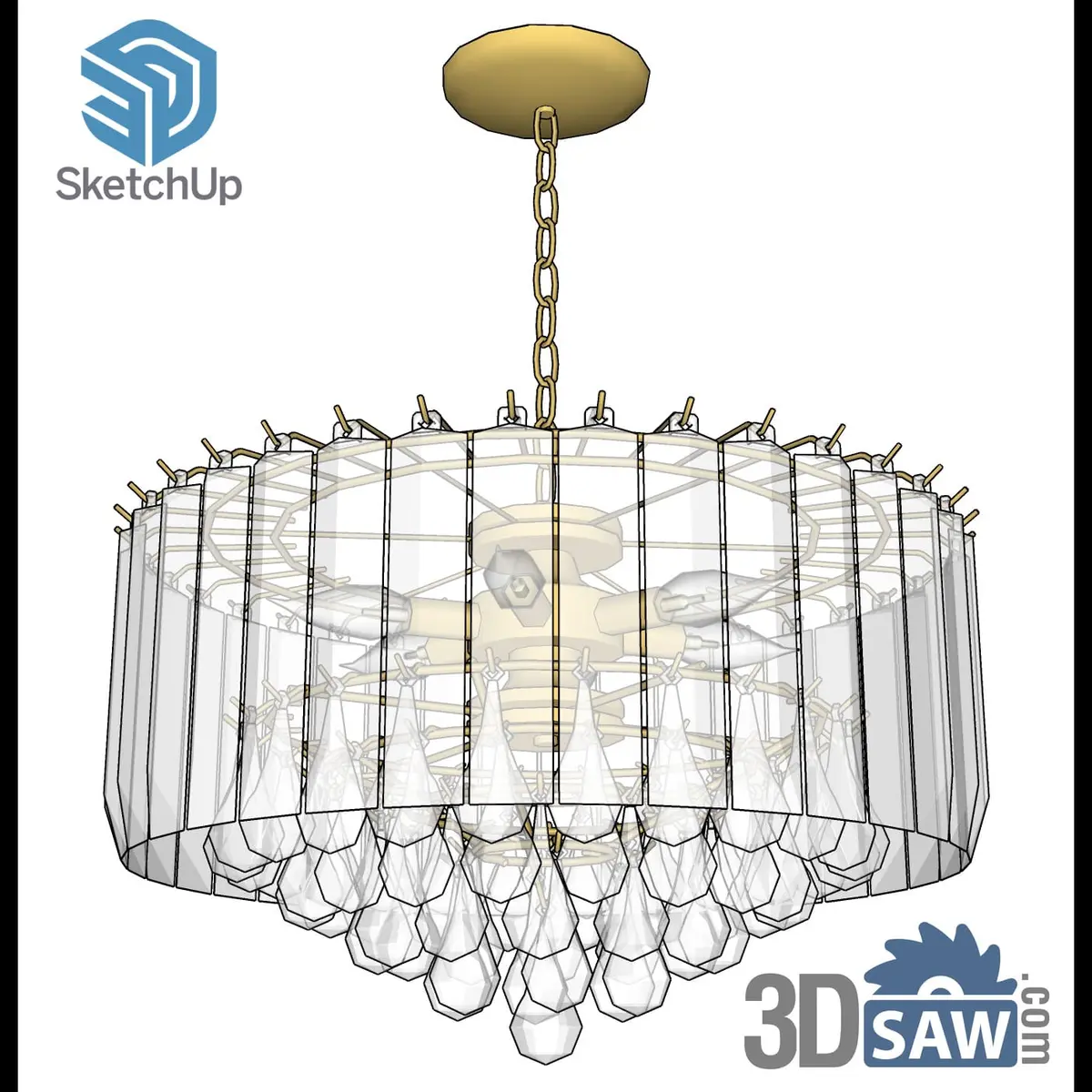
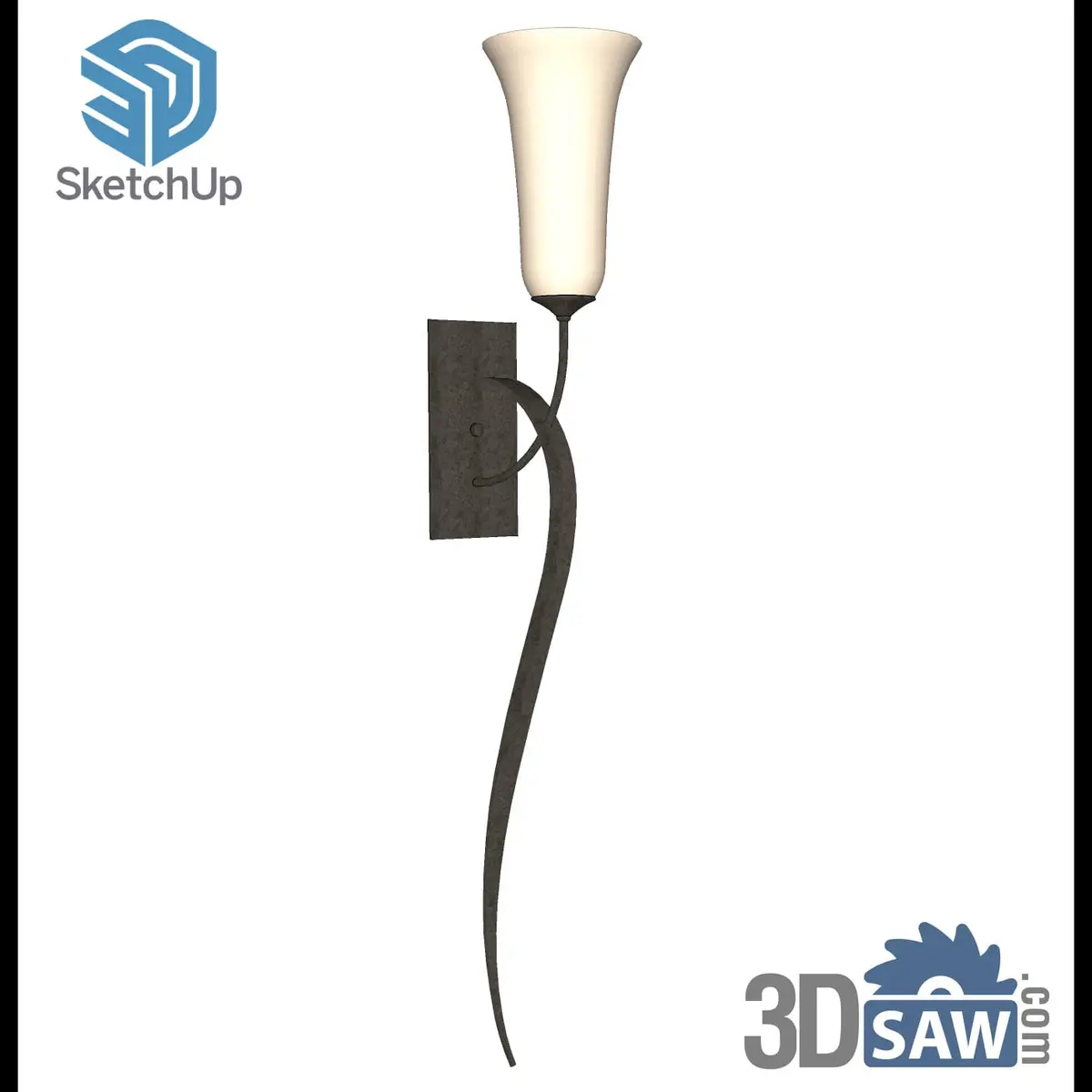
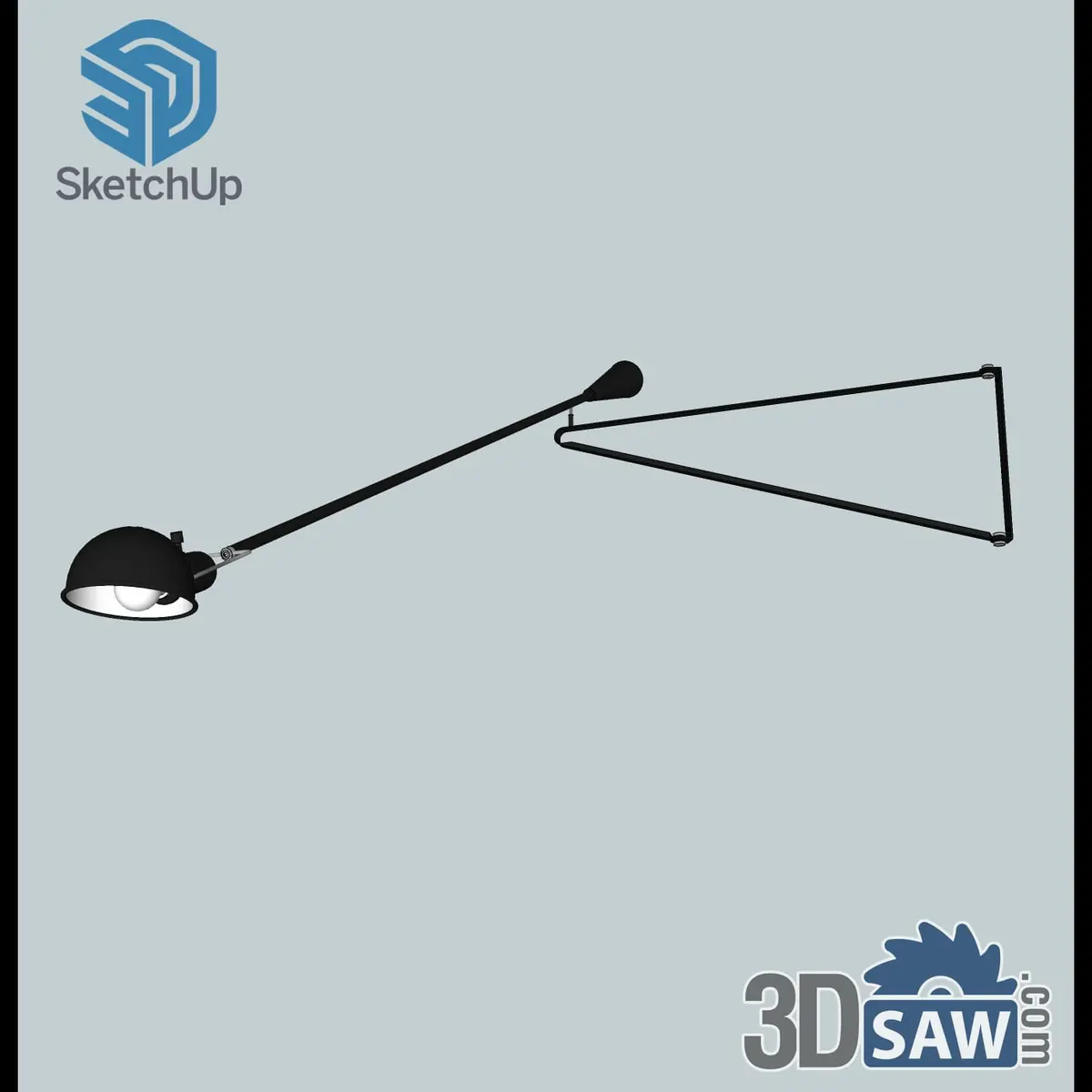
SketchUp Industrial Black Swing Arm Wall Lamp with Dome Shade
SKP-1371Lighting
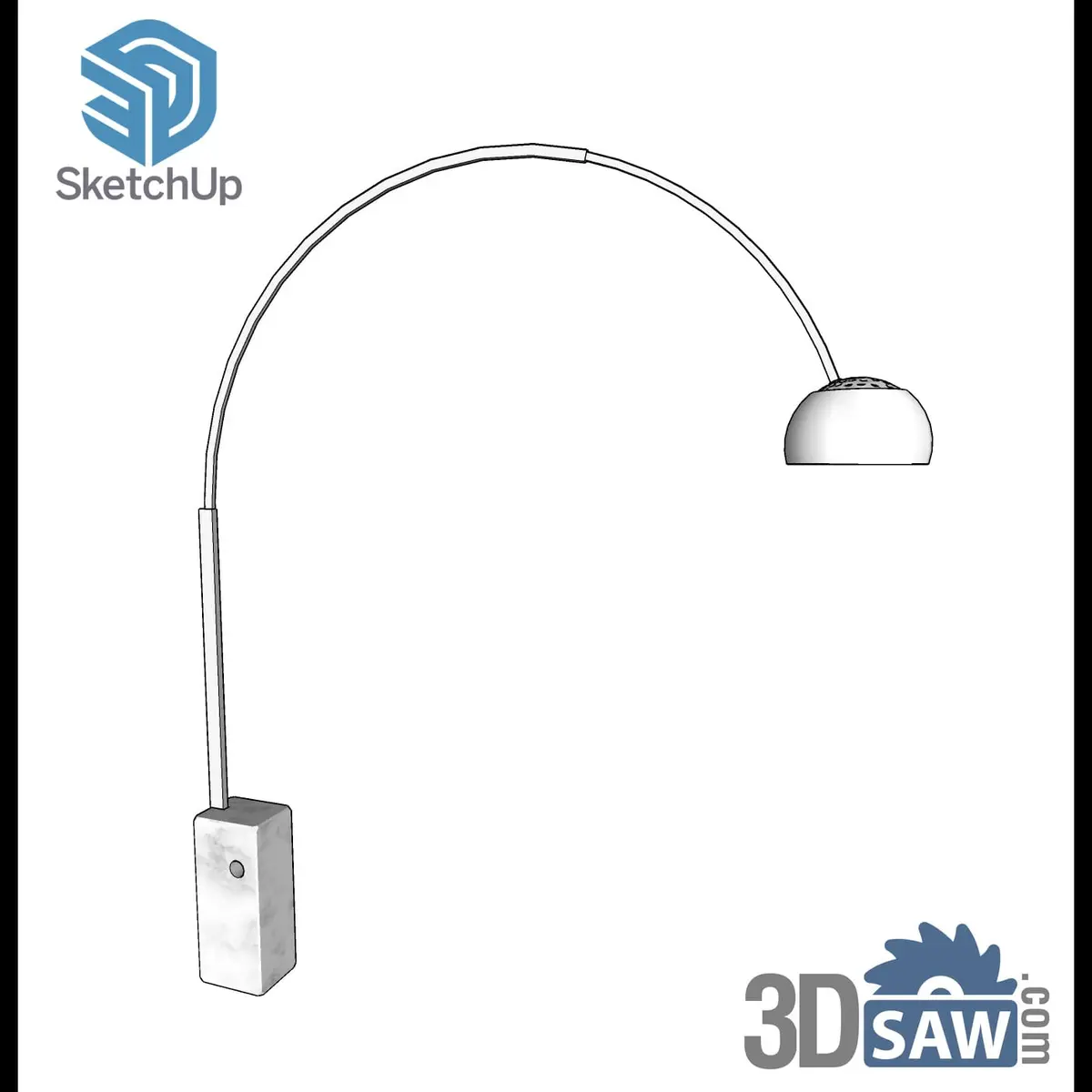
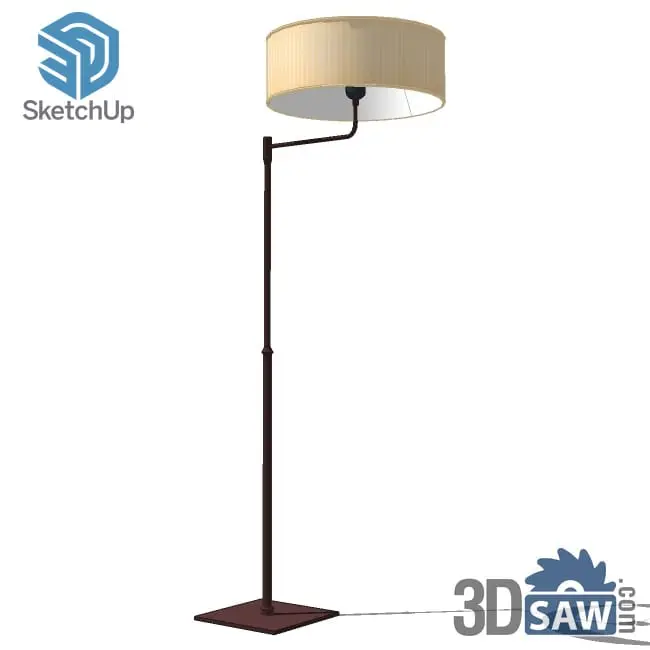
SketchUp Modern Swing-Arm Floor Lamp with Cream Drum Shade
SKP-1230Lighting
Why does my IES light look too dark or too bright?
Usually because the rest of the scene isn't set for it: IES intensities are real-world values, so a strong sun or sky, a bright exposure setting or very dark materials can make a correct profile look wrong.
- Check whether the renderer is using the file's intensity or a manual value you set earlier.
- Turn the sun and sky down when rendering an evening interior; interior fixtures can't compete with direct daylight.
- Adjust camera exposure rather than pushing every light brighter.
- Very dark wall and floor materials absorb most of the light — test with a light gray material to judge the profile itself.
Where can I find fixtures to light?
Use a fixture model for the look and the manufacturer's IES file for the light. The 3DSAW lighting catalogs have pendants, chandeliers, wall lights, floor lamps and table lamps in native .skp format.
SketchUp pendant lights →Glass, woven, caged-bulb and pleated shades — most made for dining rooms and restaurants.
SketchUp chandeliers →Crystal, candle-arm, tiered and mid-century spider designs.
SketchUp wall lights →Sconces, swing-arm lamps and vanity lights.